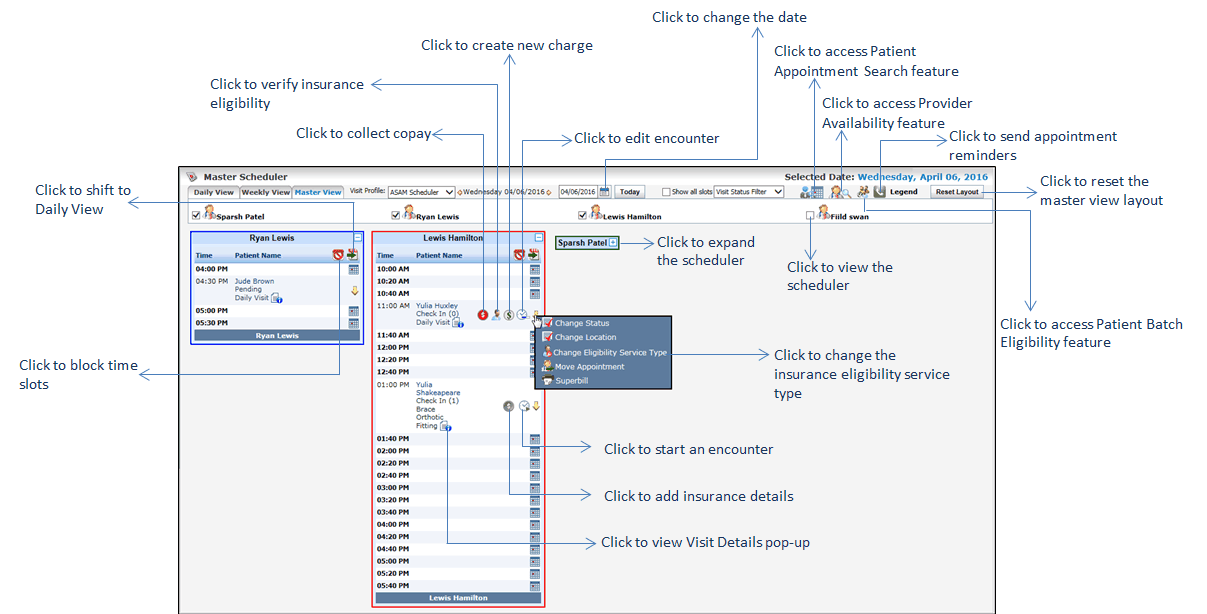
The Master View of the Scheduler is a consolidated page for multiple schedulers. Using Master View you can have a quick overview of multiple schedulers at a time. To view multiple schedulers simultaneously, select the “Master View” tab, located at the top of the Scheduler screen.
Below is an overview of Master View functionalities:
| • | The current date is displayed at the top of the “Master View” screen. |
| • | Select visit profile using drop down list. |
| • | To view schedulers of a particular date, click the icon and select the day and month you want to view. icon and select the day and month you want to view. |
| • | The date you select will then display in the window to the left of the calendar. Click the arrow and arrow and arrow to move to the previous day and next day, respectively. arrow to move to the previous day and next day, respectively. |
| • | To view the scheduler of particular rooms or providers, select respective check boxes. |
| • | To filter appointments by visit status, select appropriate visit status using drop-down list. |
| • | To view Visit Details pop-up, click  . . |
| • | To view Patient Appointment Reminder Status pop-up, click  . This icon changes as per the current status of the appointment reminder. . This icon changes as per the current status of the appointment reminder. |
| • | To perform patient appointments search, click  . . |
| • | To perform provider availability search, click  . . |
| • | To verify the insurance eligibility (Batch level), click  . . |
| • | To block time slots, click  . . |
| • | To return to Daily View, click the  icon located at the top right corner of either provider’s calendar window or by clicking the Daily View or Week View tab next to the Master View option. icon located at the top right corner of either provider’s calendar window or by clicking the Daily View or Week View tab next to the Master View option. |
| • | To reset the layout of the Master View, click the “Reset Layout” button. |