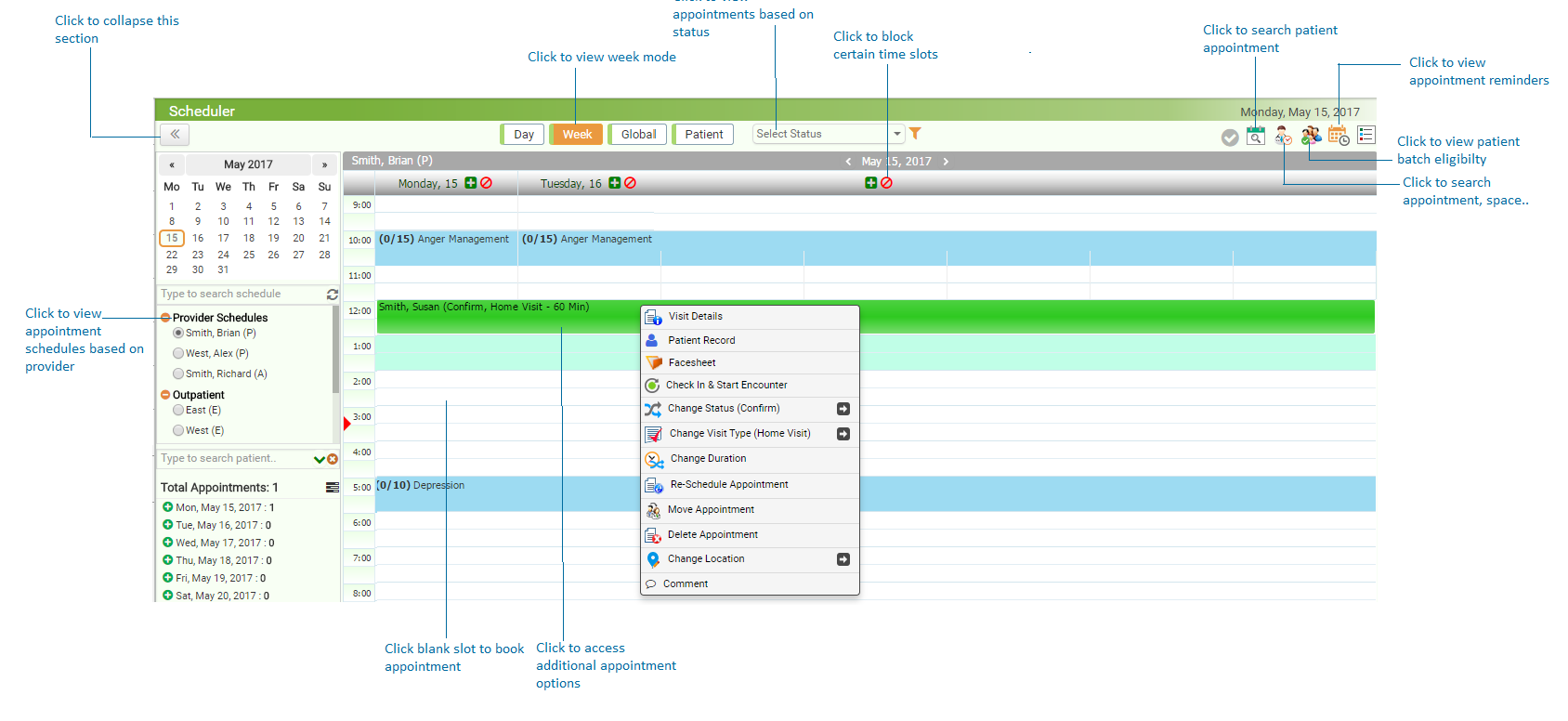
When working with the Week mode, you can see time slots with half hour difference on the left side. For example, if your schedule starts at 8 am, then it shows 8, 8.30, 9, 9.30, and so forth. The current week dates are shown at the top of the section. In each respective box on the screen, you can see all appointments with basic details. You can click the particular appointment to view the details. If required, you can cancel the appointment by clicking Cancel Visit link on the pop-up. Using the Week mode, you can;
| • | View the appointment details (patient name, status, visit type, and duration) upon hovering mouse over the patient name |
| • | Access additional options to work with respective appointment such as collecting copay, changing location, and so forth |
| • | Access and replicate the group therapy details to future group therapy appointment |
To work with the Week mode:
| 1. | From the top menu bar, click Scheduler. |
| 3. | Select Visit Profile using the drop-down list. |
| 4. | Select the Week mode from the top of the screen. |
| 5. | To access additional options (such as view visit details pop-up, collect copay, start encounter, and so forth) for any appointment, click the corresponding appointment. |
| 6. | To book new appointment, click on the blank slot or the  icon located next to the date. icon located next to the date. |
| 7. | To block certain time slots, click the  icon next to the date. icon next to the date. |
| 8. | To view copay details for the appointment, hover mouse over the Expected Copay  icon on the right. icon on the right. |