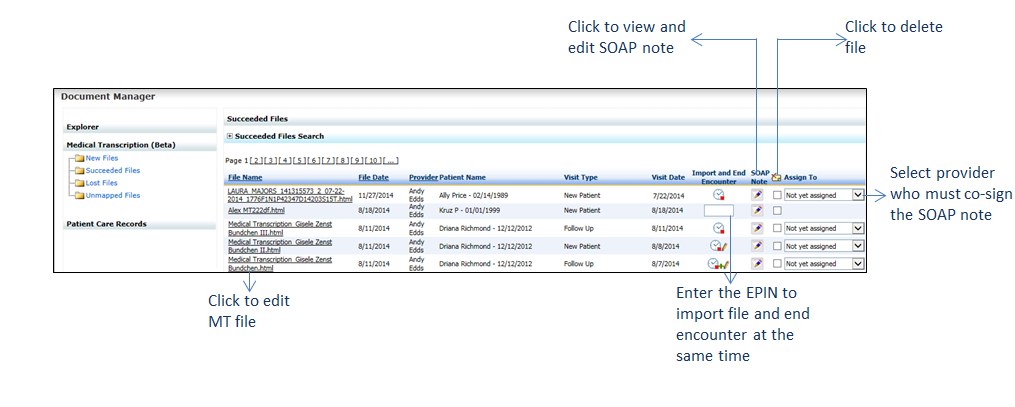
Once the MT file is imported to the patient’s encounter, the file is removed from the New or Unmapped Files folder and displayed in the Succeeded Files folder. You can also reimport the MT file and end the encounter at the same time.
To reimport succeeded files:
| 1. | On the Document Manager screen, click Medical Transcription (Beta). |
| 2. | From the folders listed, click Succeeded Files. The Succeeded Files section is displayed on the right side of the screen. |
| 3. | Click the File Name link to view the MT file. |
| 4. | Make the necessary changes and click Reimport at the bottom of the screen. |
Notes:
| • | It is important to note that appropriate tags (i.e., -:: before heading and ::- after heading) are necessary to include the content under the corresponding section in the Encounter note. |
| • | If the tags are not assigned properly, that section will appear in the Other section at the bottom on the Encounter note. |
| • | When the MT file is imported for an ended encounter, the sections (HPI, Physical Exam, etc.) are shown in the Addendum section on the Encounter note. |
| 5. | To reimport and end the encounter at the same time, enter a valid EPIN in the Text field. The MT file is reimported, and the encounter is ended as well. |
| 6. | In the Succeeded Files section, do the following: |
| • | To import the MT file and end the encounter at once, enter the valid EPIN in the Text field below the Import and End Encounter column. |
| • | To delete the MT files, select the check boxes below the icon column, and click the same icon. icon column, and click the same icon. |
| • | To edit the Encounter note details, do the following: |
| o | Click the  icon. The Encounter note is displayed. icon. The Encounter note is displayed. |
| o | Click the Edit link corresponding to the section to edit the details. |
| o | To preview and print the Encounter note, click Preview & Print at the bottom of the Encounter note screen. |
| o | To fax the Encounter note, click Send Fax. |
| • | To assign Encounter note for co-signature to the senior provider, select the senior provider who must co-sign from the drop-down below the Assign To column. |
Note: The Assign To column will not be displayed for providers who have access to co-sign.
| 7. | To search for a file, expand the Succeeded File Search panel and enter or select the appropriate search options. Click Search to view the list of files based on the search criteria. |