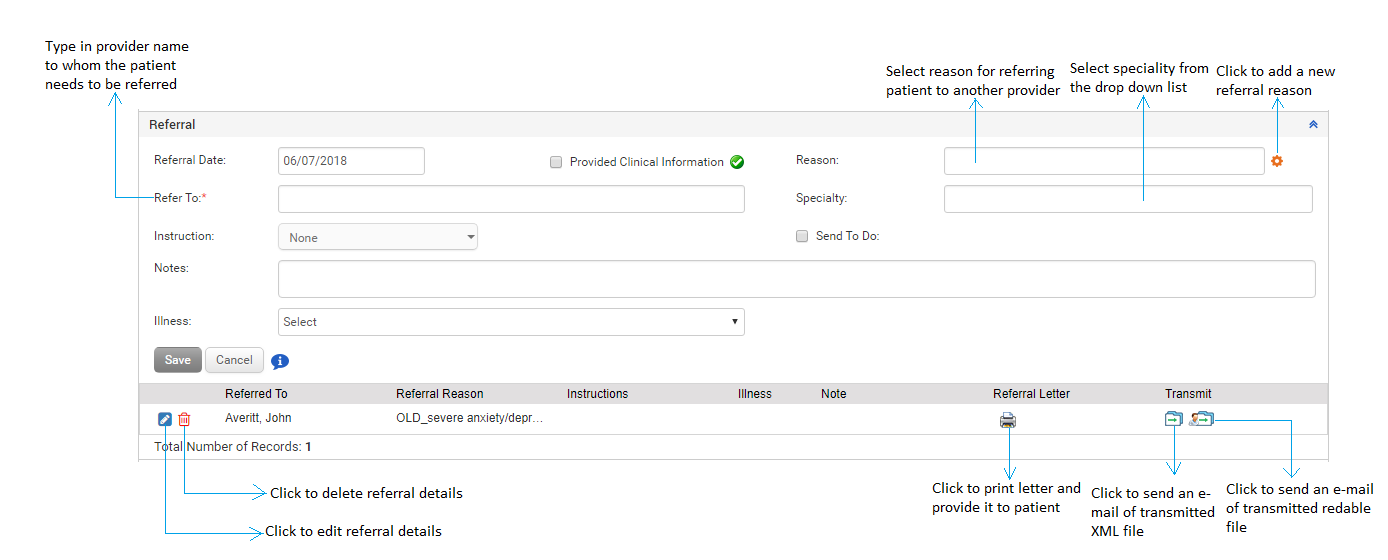
The provider may want to refer the patient to some other provider, of same practice or some other practice. The Referral section of Treatment Plan helps the user to record the reference details. The user can send the referral letter and transmit the clinical summary of the patient to other providers. The referral reason can be selected using the drop-down list, illness codes can be associated, and any referral notes can be entered in the Referral section. The user can also choose to send a To Do reminder for the referral.
To record referral information in Treatment Plan:
| 1. | On the Treatment Plan screen, click the Referral link. |
| 2. | In the Referral section, do the following: |
| • | Select the Referral Date when the patient was referred to other provider. |
| • | Select the Referral Reason from the drop-down list. If the reason you are looking for is not in the list, click the Personalize icon  to configure the one you want. to configure the one you want. |
| • | To refer the patient to someone from the practice, start typing in the provider name and a list of configured providers will appear for you to select an appropriate one. |
| • | To refer the patient to someone outside the practice, type in the provider name in the alternate box provided. |
| • | Select the specialty from the drop down list. |
| • | Enter the notes for the provider to whom the patient is referred to, if any. |
| • | Select the instructions from the list (Evaluate, Evaluate and treat, Consult, Send report, and Call) for the provider to whom the patient is referred. |
| • | Select the “Send To Do Reminder” check box which reveals 2 more fields: Reminder Date and Remind To. |
| o | Select the date on which the reminder is to be sent. |
| o | Select the provider to whom the reminder is to be sent. This is mandatory field. |
| • | Select illness from drop down list. A list of illnesses recorded in the Diagnosis section of that encounter appears. Maximum 4 illnesses can be selected. |
| 3. | Click Save. The recorded details appear in the following grid. |
Note:
| • | Once you save the details, referral letter automatically gets saved in Document Manager. Any further changes in the charting will not appear to this letter in Document Manager. Users again have to generate the letter to include recent information in the letter. |
| • | Recording referral details helps in increasing denominator for the following cores of MU-2: |
| o | Core 15a: Provide summary of care record to patient for each transitions of care and referrals |
| o | Core 15b: Transmit summary of care record for each transitions of care and referrals |
Please refer to the above section in Meaningful Use Stage – 2 User Guide for more details.
| 4. | Click the edit icon ( ) to edit the referral details. Select the Provided Clinical Information check box to provide clinical information along with the referral summary. This helps in increasing numerator for “Core 15a: Provide summary of care record to patient for each transitions of care and referrals” of MU-2. Please refer to the above section in Meaningful Use Stage – 2 User Guide for more details. ) to edit the referral details. Select the Provided Clinical Information check box to provide clinical information along with the referral summary. This helps in increasing numerator for “Core 15a: Provide summary of care record to patient for each transitions of care and referrals” of MU-2. Please refer to the above section in Meaningful Use Stage – 2 User Guide for more details. |
| 5. | Click the delete icon  to delete the referral details. to delete the referral details. |
| 6. | To print the referral letter, click the printer icon  . . |
| 7. | To transmit the XML file, click the  icon. The Transmit C-CDA file screen opens with the attached XML file for you to compose and send an e-mail. icon. The Transmit C-CDA file screen opens with the attached XML file for you to compose and send an e-mail. |
| 8. | To transmit the readable file, click the  icon. The Transmit C-CDA file screen opens with the attached readable file for you to compose and send an e-mail. icon. The Transmit C-CDA file screen opens with the attached readable file for you to compose and send an e-mail. |
Note: The XML and readable files can only be transmitted to DIRECT users. Transmitting the clinical information along with the referral summary helps in increasing numerator for “Core 15b: Transmit summary of care record for each transitions of care and referrals” of MU-2. Please refer to the above section in Meaningful Use Stage – 2 User Guide for more details.