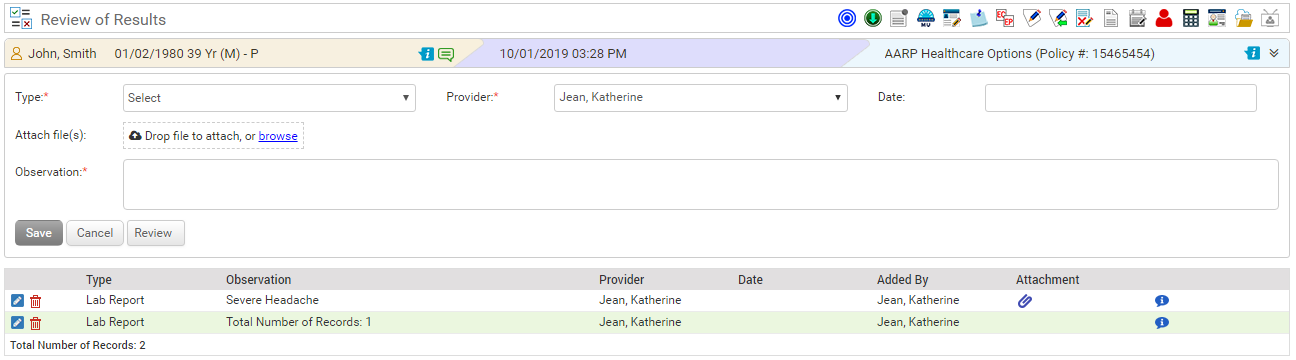
Upon reviewing the patient’s health information, the provider can add the type of results and the relevant observations done in this section.
To record a review of result for a patient encounter:
| 1. | In the charting elements ribbon, click Review of Results. The Review of Result screen is displayed. |
| 2. | Select the Type of test from the drop-down list. This field is mandatory. |
| Note: The list displayed in the drop-down is configurable. For details on configuration, refer to the Master Maintenance section in Administration. |
| 3. | By default, the encounter’s provider is auto-selected. If you want to change this, select the provider from the Provider drop-down list. |
| 4. | Select the Date of review from the calender. |
| 5. | Click the browse link to attach a relevant file, if any. |
| 6. | Enter the Observation. This field is mandatory. |
| 7. | Click Save. The details are then saved successfully and added to the grid below. |
| 8. | Once reviewed by the provider, select the Review button. Your name will display as a reviewer, along with date and time. You can modify the date and time as well. |
| 9. | To edit the result details, click the edit icon  . . |
| 10. | To delete the result details, click the delete icon  . . |