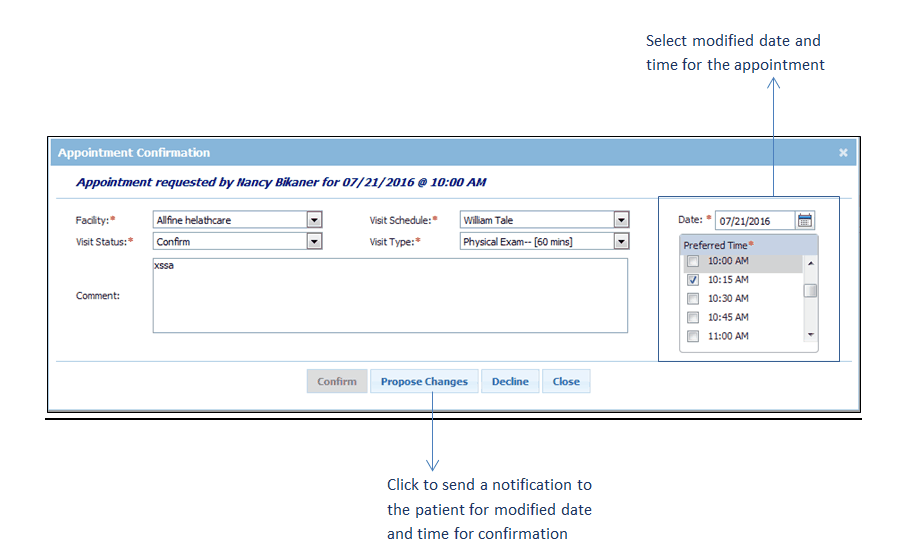
Practice users can modify the date and time of the appointment requested by the patient using InTouch Patient Portal. Once appointments are modified, system sends an automated email notification to patient's email for verification of the changed time and date. If practice users have already confirmed about the changed date and time, they can directly confirm the appointment for the modified time.
To modify the appointment request:
| 1. | From the left menu items, select Scheduler > Appointment Requests. |
| 2. | To modify the appointment request, click View & Confirm next to the corresponding appointment. |
| 3. | Select the preferred date and time for the patient's visit. |
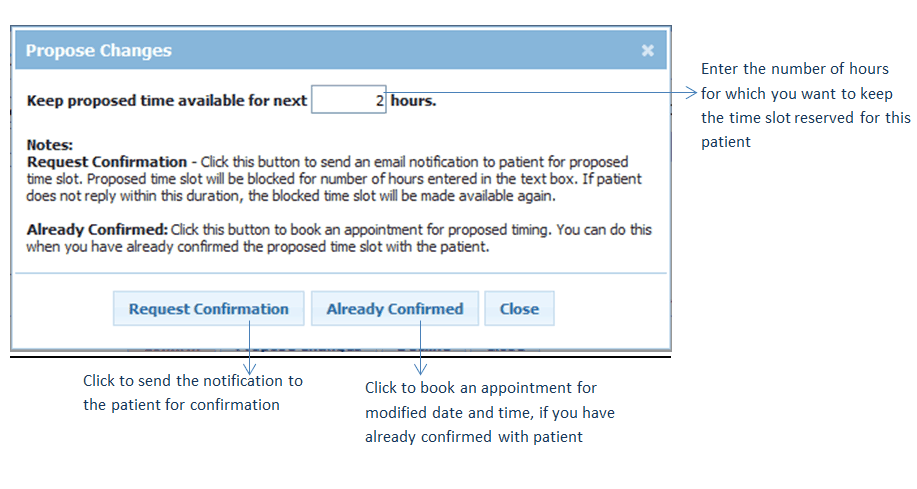
| 5. | Once you click Propose Changes, enter the number of hours for which you want to keep the time slot reserved for the patient. |
| 6. | Do one of the following: |
| • | Click Request Confirmation. |
| Note: System sends an automated email to patient's email address with an option to accept or decline the requested time slot modified by practice. |
| o | if request is approved, appointment is booked for the patient, |
| o | if the request is declined by the patient, the time slot is made available for booking an appointment, and |
| o | if patient does not check email for the number of hours entered when requesting confirmation, the hyperlinks get expired and time slot is made available for booking an appointment. |
| • | If you have already confirmed about the changed date and time, click Already Confirmed. |