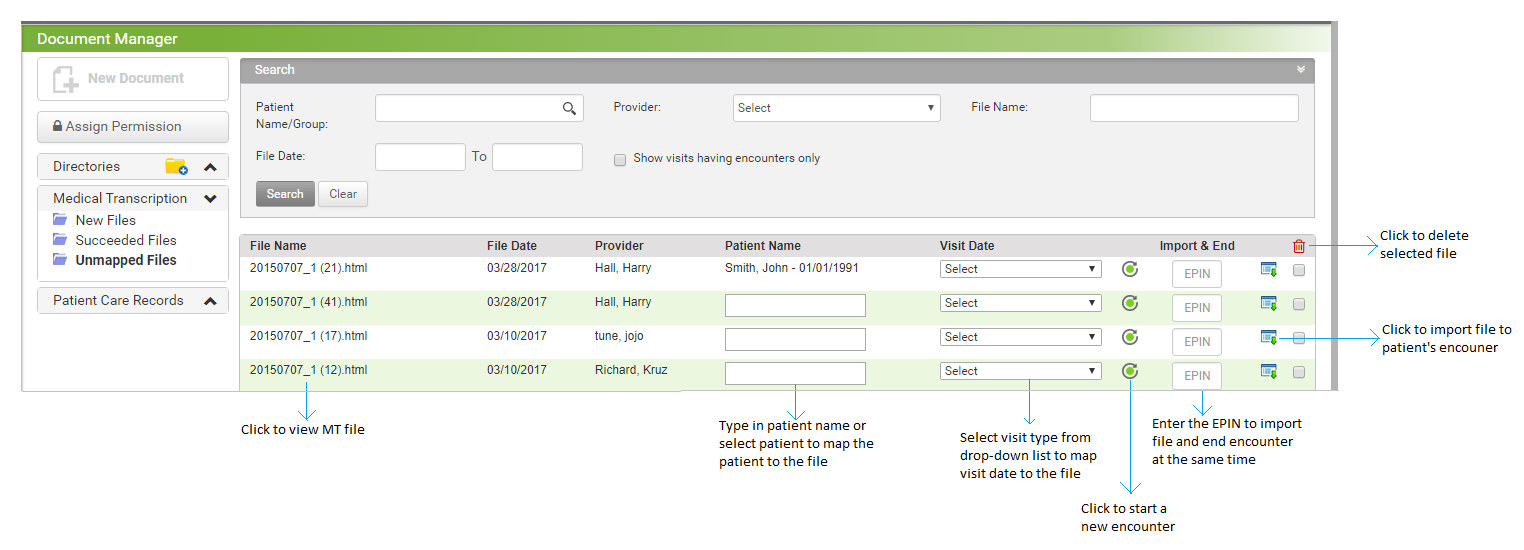
When the MT user uploads the file without mapping it with the patient or visit or both, it is displayed in the Unmapped Files folder.
To map the unmapped files:
| 1. | On the Document Manager screen, click Medical Transcription from the left pane. |
| 2. | From the folders listed, click Unmapped Files. The Unmapped Files section is displayed on the right side of the screen. |
| 3. | To map the patient name and visit date with the received file, do the following: |
| • | Start typing the patient name and select the name from the list. |
| • | The Visit Date drop-down list shows all the encounters and the booked appointments of the selected patient. Select the encounter or the booked appointment to which the MT file needs to be imported. On associating the file with a booked appointment (for which an encounter is not available in the system), the encounter is automatically started. |
| • | If the encounter does not exist, you can start a new encounter for this patient by clicking the Start Encounter icon  that opens up the Manage New Encounter screen. that opens up the Manage New Encounter screen. |
| • | On the Provider Facility Information screen, do the following: |
| o | The Encounter Type is selected as Transcribed Note. If you wish to change the encounter type, select it from the drop-down list. |
| o | The Primary Facility and Provider details are populated with the logged-in details. |
Note: If the logged-in user is not a provider, the patient's primary provider is auto-selected.
| o | Enter a referring provider if the patient is referred by another provider. |
| o | Enter or select the visit date. This field is mandatory. |
| o | Enter or select the visit time. This field is mandatory. |
| o | To create the encounter only, click Save. |
| o | To create the encounter and import the file, click Import. |
| o | To create the encounter, import the file, and end the encounter at once, enter the valid EPIN. |
| 4. | In the Unmapped Files section, do the following: |
| • | To import the MT file to the patient’s encounter, click the Import icon  . Once the MT file is mapped successfully and imported to the patient’s encounter, the file can be viewed in the Succeeded Files folder. . Once the MT file is mapped successfully and imported to the patient’s encounter, the file can be viewed in the Succeeded Files folder. |
| • | To import the MT file and end the encounter at once, enter the valid EPIN in the Text field below the Import and End Encounter column. |
| • | To edit the MT file, click the File Name link. Make the necessary changes and click Save at the bottom of the screen. |
Notes:
| • | It is important to note that appropriate tags (i.e., -:: before heading and ::- after heading) are necessary to include the content under the corresponding section in the Encounter note. |
| • | If the tags are not assigned properly, that section will appear in the Other section at the bottom on the Encounter note. |
| • | When the MT file is imported for an ended encounter, the sections (HPI, Physical Exam, etc.) are shown in the Addendum section on the Encounter note. |
| • | To delete the MT files, select the check boxes below the  icon column, and click the same icon. icon column, and click the same icon. |