How To Activate and Add a Payer

Contents
When InSync is installed on your system, the insurance (payer) list that you have opted for during implementation process comes pre-configured with InSync.
Key Points To Know When Working with Payers:
| • | The pre-configured payers appear in the active payers list in the system. If you do not see the payer you want, that payer may have been available in the inactive payers list. You can activate such payers from the inactive payers list. |
| • | If the payer you are looking for is not available in the inactive payers list too, you can add new payers (insurances) and update them as and when required. |
| • | Mapping patient’s insurance with payer and facility is mandatory to create a charge for that patient. |
Viewing Active Payers (Insurances):
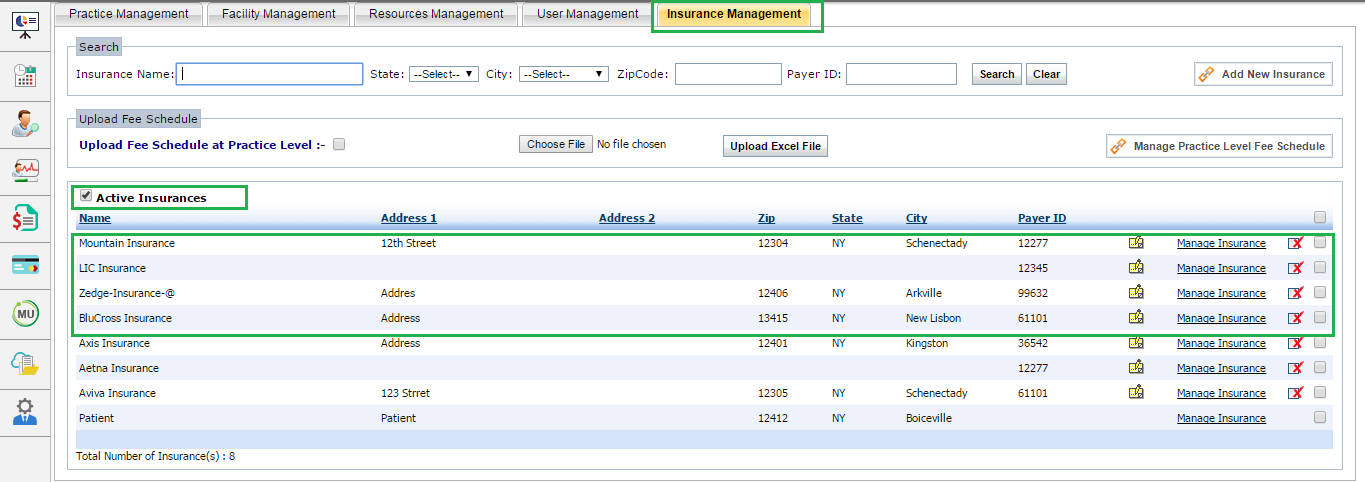
| 1. | Go to Admin > Insurance Management. |
| 2. | Locate that the Active Insurances check box is selected. |
| 3. | List of active insurances appear. |
How To Activate a Payer (Insurance):
When the insurance you are looking for is not available in the active payers list, check that insurance in the inactive payers list. Activate it and then you will be able to use that insurance in the system.
| 1. | Go to Admin > Insurance Management. |
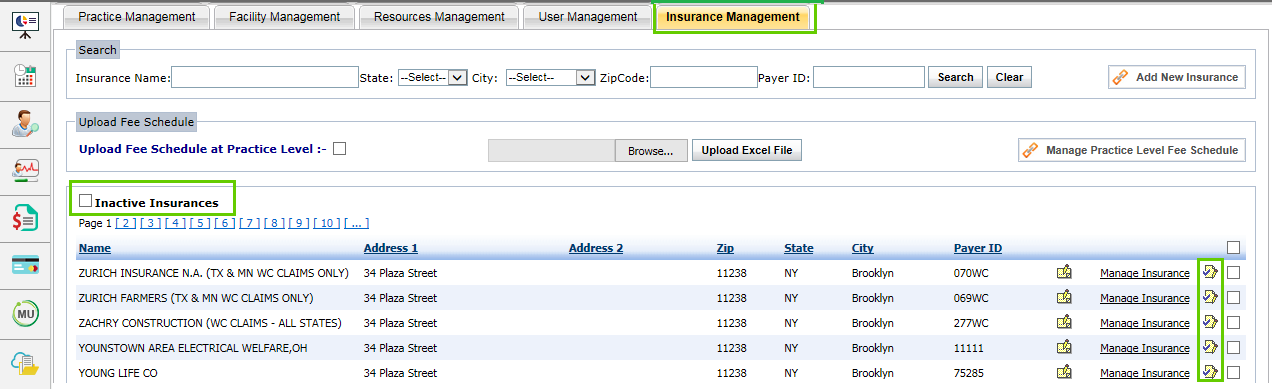
| 2. | Deselect the Active Insurances check box. |
| 3. | List of inactive insurances appear. |
| 4. | Search for the insurance that you want to use and click the Activate icon  from the extreme right end. from the extreme right end. |
How To Add a Payer (Insurance):
If the insurance is not available in the system, neither in active nor inactive payers list, you can add the insurance by your own. Later, you can update the insurance as and when required.
| 1. | Go to Admin > Insurance Management. |
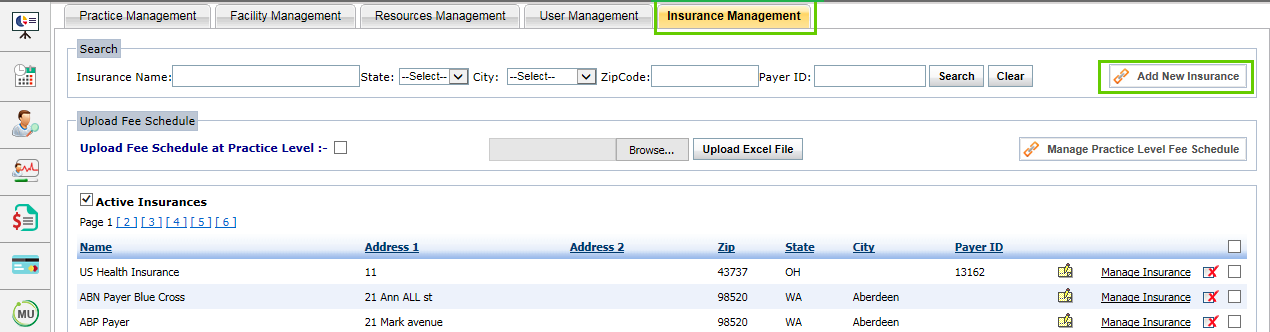
| 2. | Click the Add New Insurance button. |
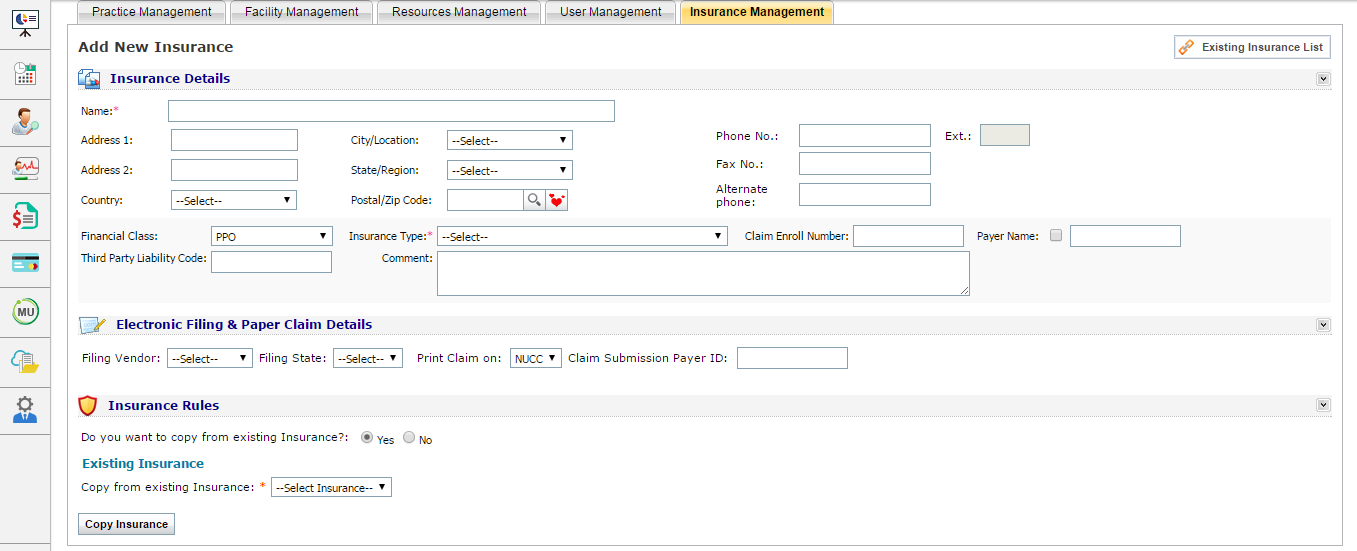
| 3. | In the Insurance Details section, enter mandatory details such name, address, contact numbers, financial class, insurance type, claim enroll number, Third Party Liability (TPL) Code, and any comments. The short name of the insurance which you want to use for coordinating with clearinghouse can be configured in the Payer Name field. |
| 4. | In the Electronic Filing & Paper Claim Details section, select the filing vendor, filing state, and claim submission payer ID. |
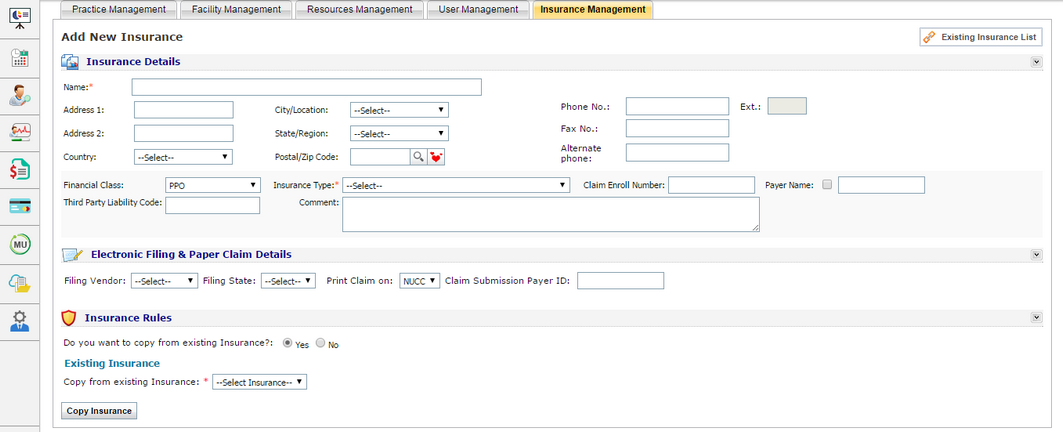
| 5. | In the Insurance Rules section, copy the rules from any of the previous insurances or define new rules: |
| o | To copy the rules from any of the previous insurances, select insurance from the drop down list and click the Copy Insurance button. |

| o | To define new rules, enter the details such as effective period, select settings for CLIA mandate, coding standard (ICD 9 or 9/10), group or individual claim, authorization need, and so on. Click the Save Insurance button. |
| 6. | Insurance Mapping: The next screen will allow you to map the insurance with facility and provider. If the rules are copied from existing insurance, the insurance mapping can be seen with the facility and provider. |
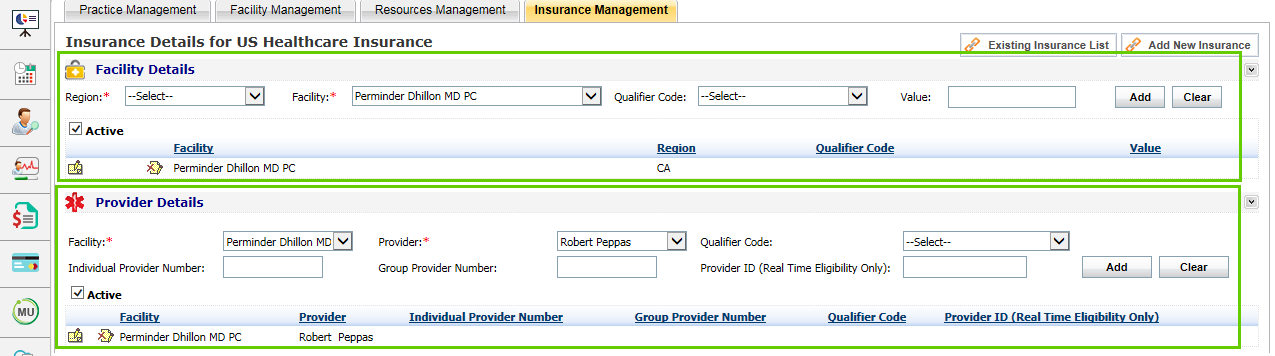
| 7. | In the Facility Details section, select the Region and Facility, and click Add. The insurance will be mapped with that specific region and facility. |
| 8. | In the Provider Details section, select provider and click Add. The insurance will be mapped with that provider. |