How To Configure PM Dashboard (User Level)

Contents
PM Dashboard is a set of widgets that represents financial flow of the practice in the graphical manner for comprehending quick idea of productivity. The details shown on each widget are based on the facility, provider, and date of service selection on the left pane.
Note: You can access PM Dashboard only when it is assigned by Practice Administrator for your role.
Key Points to Know When Configuring PM Dashboard
| • | You can generate the report for each widget separately to view the detailed information about respective widget. |
| • | You can configure the dashboard you want to see when logging in the application; Clinical or PM. |
| • | The Aging Widget retrieves the details of recent one year, regardless of the date of service range selected in the left pane. |
| • | By default, details are retrieved for the current date. |
To Configure PM Dashboard:
| 1. | From the left menu items, select Administration > PM > Dashboard. |
| 2. | In the Default Dashboard section, select Clinical or PM. The dashboard selected here is displayed by default when logging in the application. |

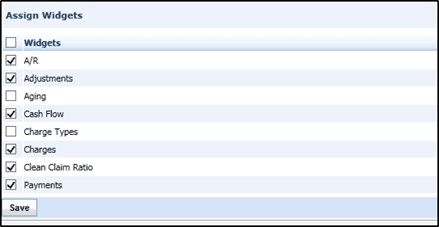
| 3. | In the Assign Widgets section, the list of widgets is displayed which are assigned for your role by the practice administrator. All are selected to display the respective details on the Dashboard screen. Deselect one or more which you don’t wish to display on PM Dashboard. |
| 4. | Click Save. |