Introduction
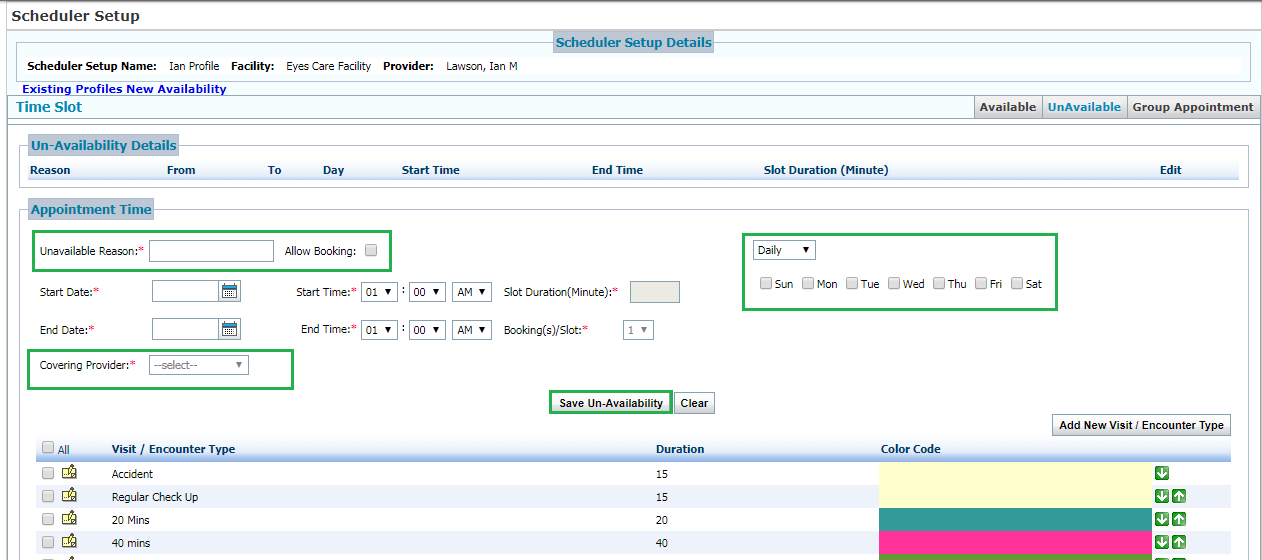
InSync facilitates setting certain time slots unavailable from booking appointments. You can block these time slots on the Scheduler Setup screen for the same. You can perform two types of scheduler blocks.
| • | Hard Block: No appointments are allowed to be booked during the time slot(s) specified unavailable; time slots will not appear on the Scheduler. |
| • | Soft Block: You will be able to book appointments for time slots for which the provider has indicated unavailability; time slots will appear in light blue color on the Scheduler screen. |
*Note: You must click in the “Allow Booking” check box to indicate a Soft Block.
Blocking Specific Time Slots
| 1. | From the left menu items, select Administration > Configuration > Scheduler Setup. |
| 2. | Click on Manage Time Slots and Appointments. |
| 3. | Click the UnAvailable button to open the Un-Availability Details screen. |
| 4. | Enter the reason for unavailability. |
| 5. | Select the Allow Booking check box to allow booking appointments for blocked time span. |
| 6. | Enter or select the Start Date and the End Date using Calendar. |
| 7. | Select the check box(es) to include the day(s). |
| 8. | Select the Start Time and the End Time of the scheduler using drop down list. |
| 9. | Enter Slot Duration in minutes. |
| 10. | Select the number of bookings that can be made for a single time slot using the Booking(s)/Slot drop-down list. |
| 11. | Select the covering provider who will look after the patients. |
| 12. | Select the check box(es) from the available list at the bottom of the page or go to Add new Visit/Encounter type to Include Visit Type(s). |
| 13. | Click the Save Un-Availability button to save Un-Availability Details. |