Health Maintenance is a systematic program or procedure planned to prevent illness, maintain maximum function, and promote health.
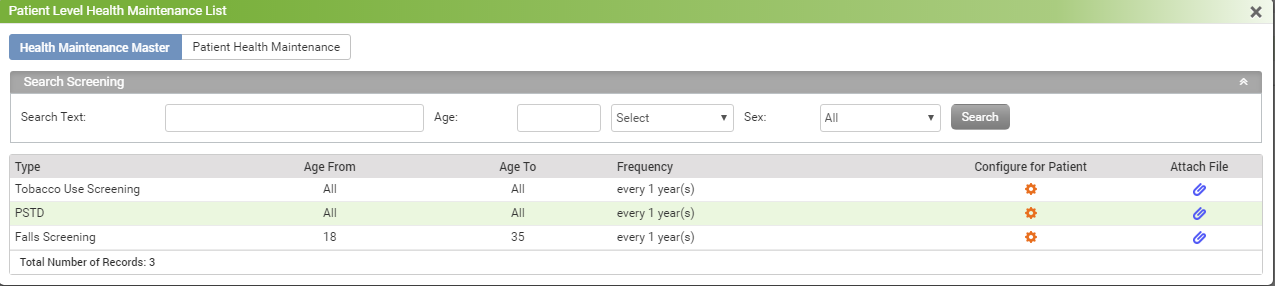
To record a patient’s health maintenance:
| 1. | In the charting elements ribbon, click Health Maintenance. The Health Maintenance screen is displayed with all the health maintenance tests configured in the system. For details on configuring health maintenance tests, refer to the Health Maintenance under Administration. |
| 2. | On the Health Maintenance screen, do the following: |
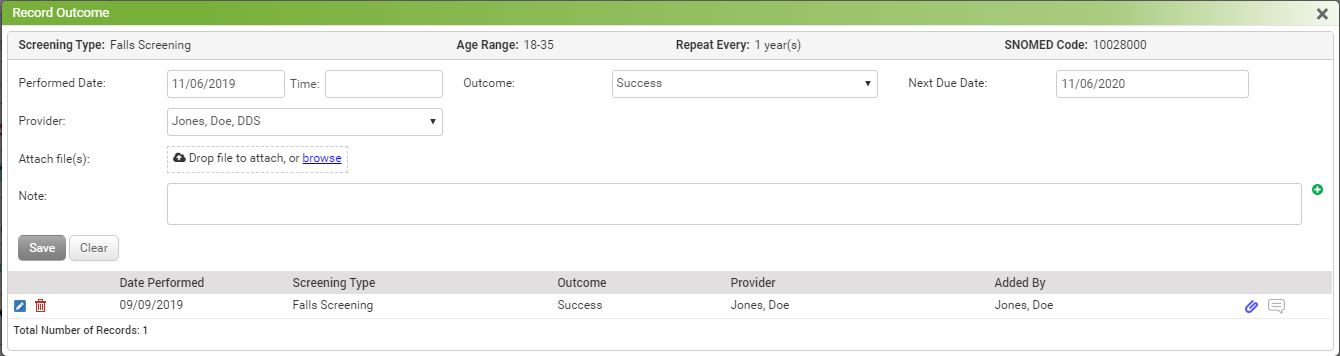
| • | To record the outcome of the test performed on the patient, click the Record Outcome link. The Record Outcome screen is displayed. |
| • | Considering a patient’s health conditions, if you want to reschedule the patient’s health maintenance, click the Override link corresponding to that test. |
| • | To view any documents attached to the test, click the View link. |
| • | To view the Health Maintenance Report, click View Report. |
| • | To add new health maintenance tests to be performed on the patient, click Add New screening. |
| 3. | On the Record Outcome screen, do the following: |
| o | Record the date and time when the test was performed. |
| o | Select the outcome (success or failure) from the drop-down list. |
| Note: The date in the Next Due Date field is auto-populated based on the frequency set in the configuration. |
| o | Select the Next Due Date, if required. |
| o | By default, the encounter’s provider is auto-selected. If you want to change this, select the provider from the Provider drop-down list. |
| o | Click the browse link to attach a relevant file, if any. |
| o | Click Save. The details are updated in the grid below and in the Health Maintenance Screen. |
| 4. | Once reviewed by you, select the Review button. Your name will display as a reviewer, along with date and time. You can modify the date and time as well. |

.png)
