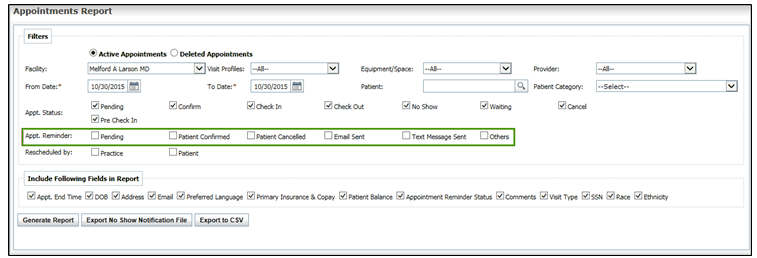
When you set up a patient appointment reminder in the system, various statuses are created. For example, the Pending status indicates that the appointment is sent but the patient has not yet responded. The Patient Confirmed status indicates that the patient has acknowledged the receipt of appointment reminder sent via phone. The Email Sent and Text Message Sent statuses indicate that the email and text messages have been delivered to the patient. When the patient cancels the appointment reminder request, it is referred to as the Patient Cancelled status.
You can generate a report for all these appointment reminder statuses.
| 1. | From the left menu items, select Reports > Scheduler Reports > Appointments. |
| 2. | In the Appt. Reminder section, do the following: |
| • | To generate a report for the appointment reminders, |
| o | for which the patients have not yet responded, select the Pending check box. |
| o | confirmed by the patients, select the Patient Confirmed check box. |
| o | cancelled by the patients, select the Patient Cancelled check box. |
| o | for which emails have been sent, select the Email Sent check box. |
| o | for which the text messages have been sent, select the Text Message Sent check box. |
| • | To generate a report for other statuses such as “Not Connected”, “Live Wrong Key Press”, “Live Talk To Practice”, “Answering Machine” & “No Key Press”, select the Other check box. |
| • | To generate a report for all the above options, select all the check boxes in the Appt. Reminder section. |
| 3. | Apply the other filters as per your requirement. |
| 4. | To print the different fields on the report such as DOB, Address etc., select the check boxes in the “Include Following Fields in Report” section. |