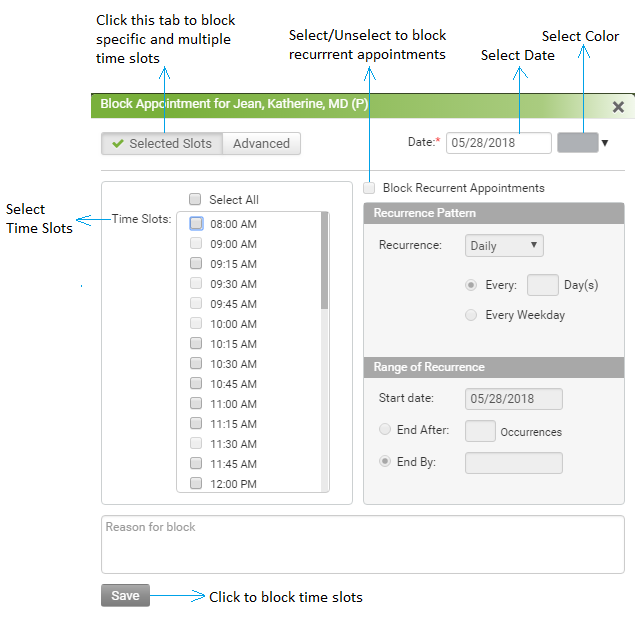
InSync facilitates you to block multiple time slots for a maximum span of 1 year. For example, If you have a schedule from 9 am to 6 pm every day and for some reason you are not available from 2 pm onwards for next 5 days. You can block your scheduler accordingly.
To block only some time slots,
| 1. | To block any time slot, click on the block  icon. Block Appointment pop up appears. icon. Block Appointment pop up appears. |
| 3. | Select the color which will show up in the blocked time slots. |
| 4. | Select the Time Slots you want to block. |
| 5. | You can also block recurrent appointment time slots, if required. |
| • | You can block the recurrence pattern. |
| • | You can also block the range of recurrence. |
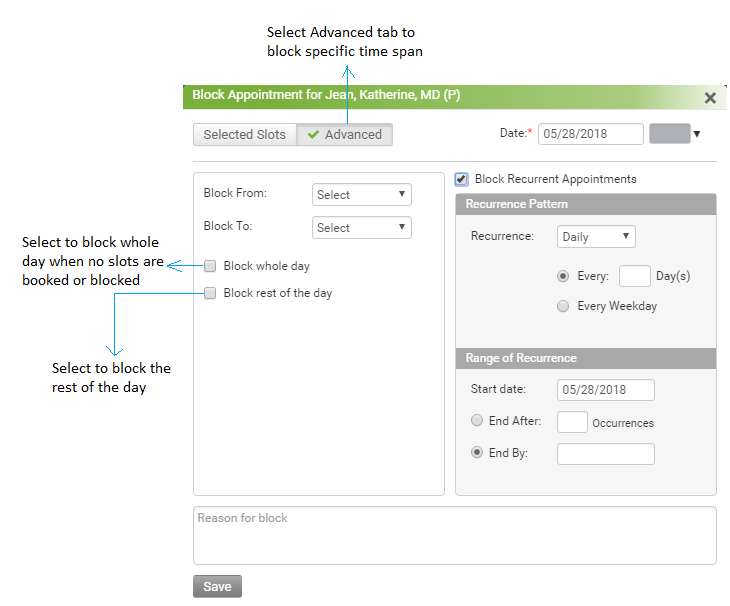
To block specific time span,
| 1. | To block any time slot, click on the block icon. Block Appointment pop up appears. |
| 3. | Select the color which will show up in the blocked time slots. |
| 4. | Select the Block From time slot. |
| 5. | Select the Block To time slot. |
| 6. | Select Block whole Day, if required. |
| 7. | Select Block rest of the Day option. if required. |
| 8. | You can also block recurrent appointment time slots, if required. |
| • | You can block the recurrence pattern. |
| • | You can also block the range of recurrence. |